Run your shop from your phone. OpenShop Merchant, on the App Store.
Your OpenShop shop's orders, products, settings and sales, on your phone. The app is free and you sign in with the same account as the web console.
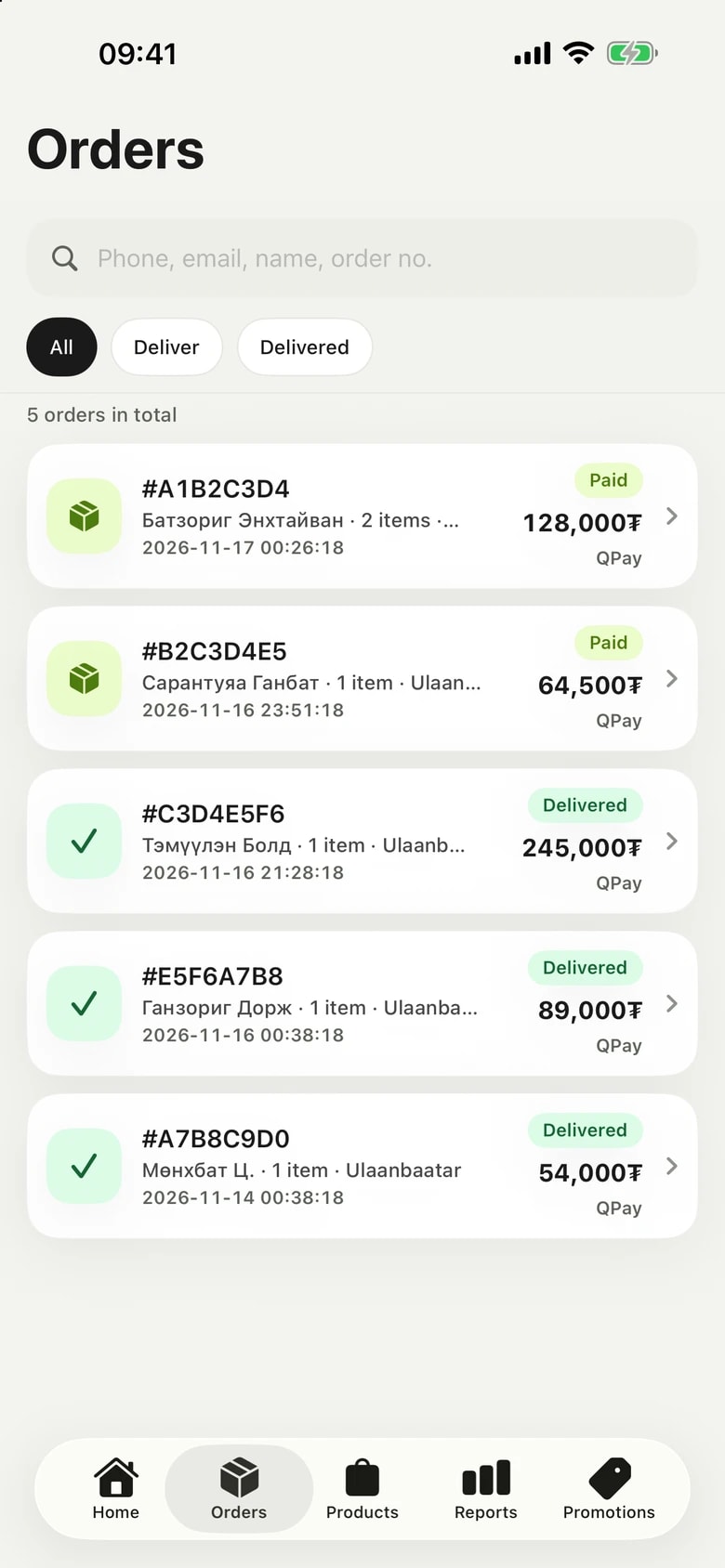
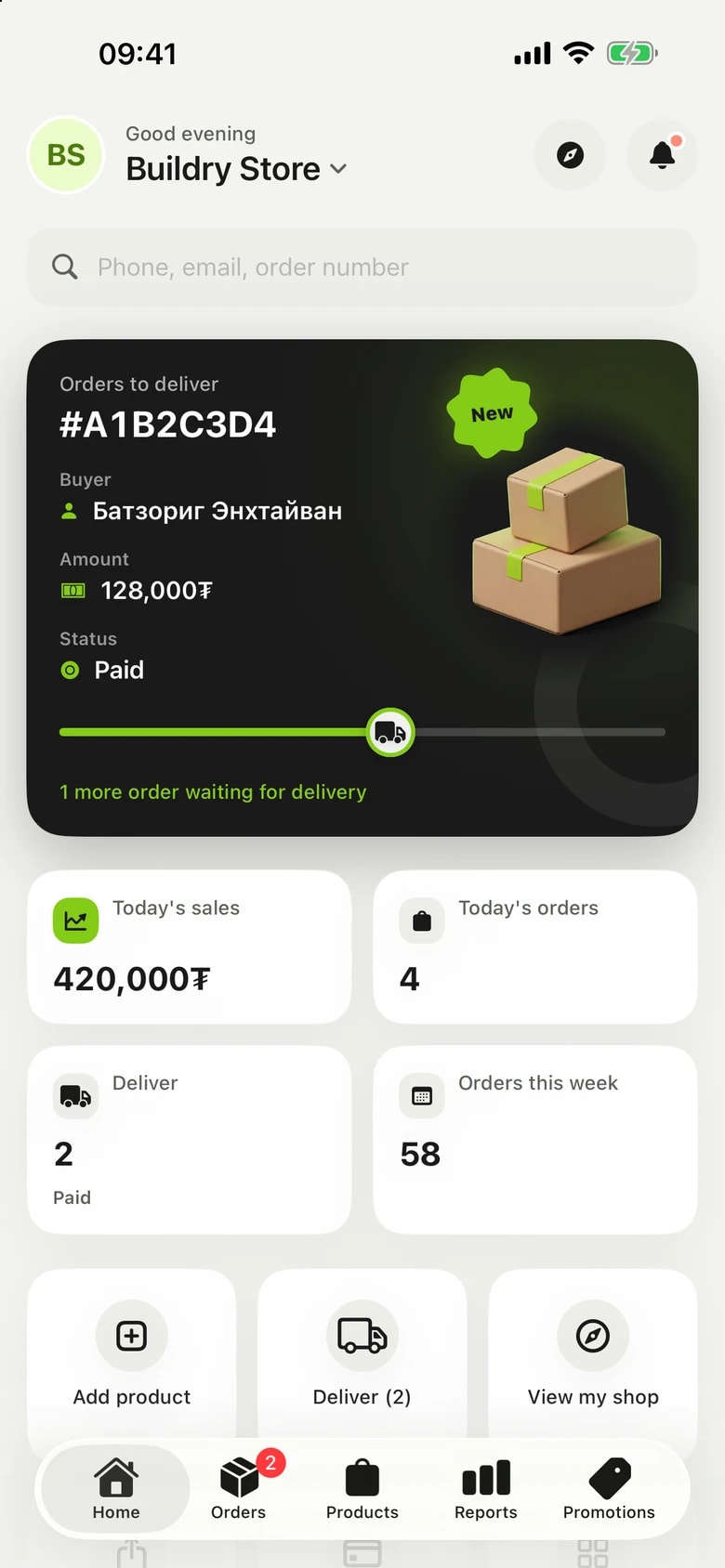
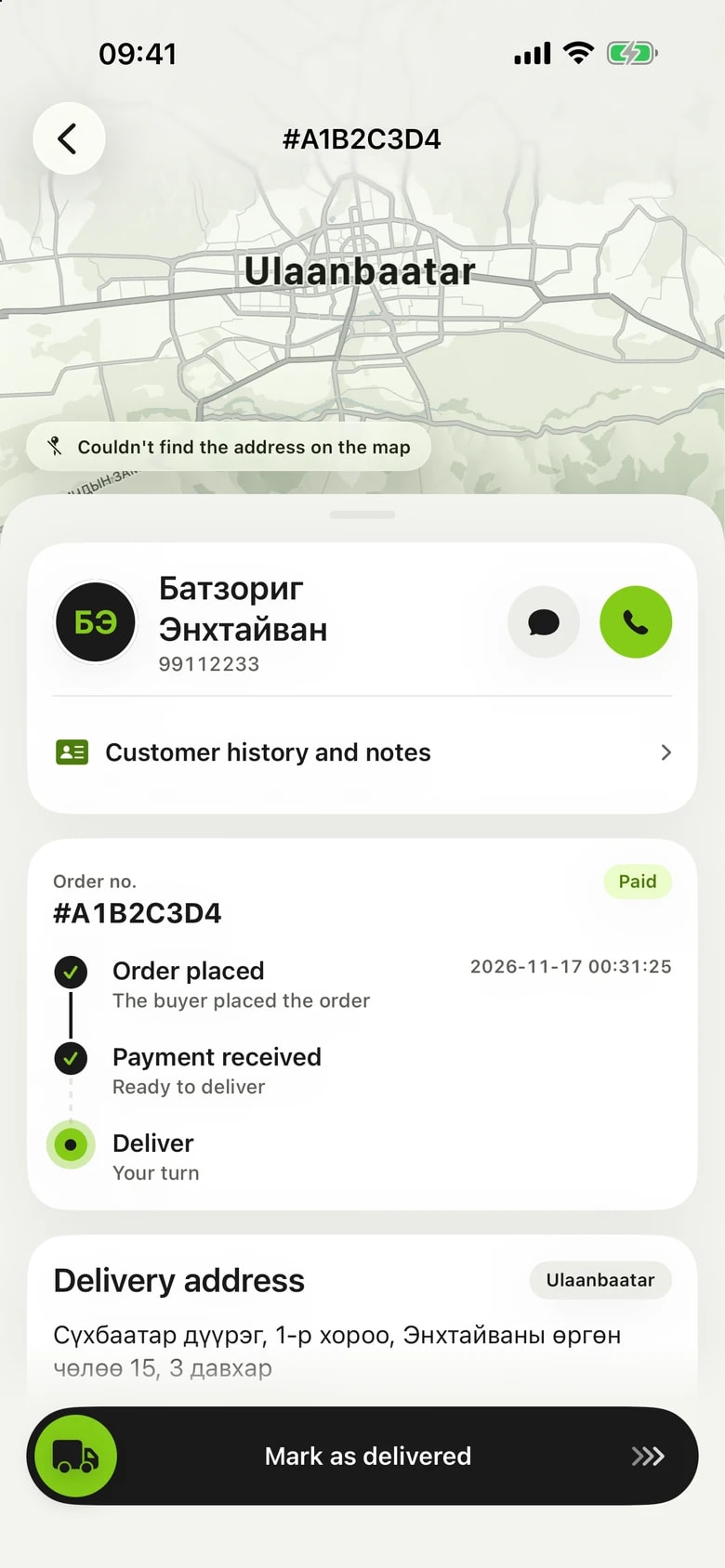
Your daily work in one hand.
- 01
New order notifications
A notification arrives as soon as an order is paid. Tap it to open that order.
- 02
Order details
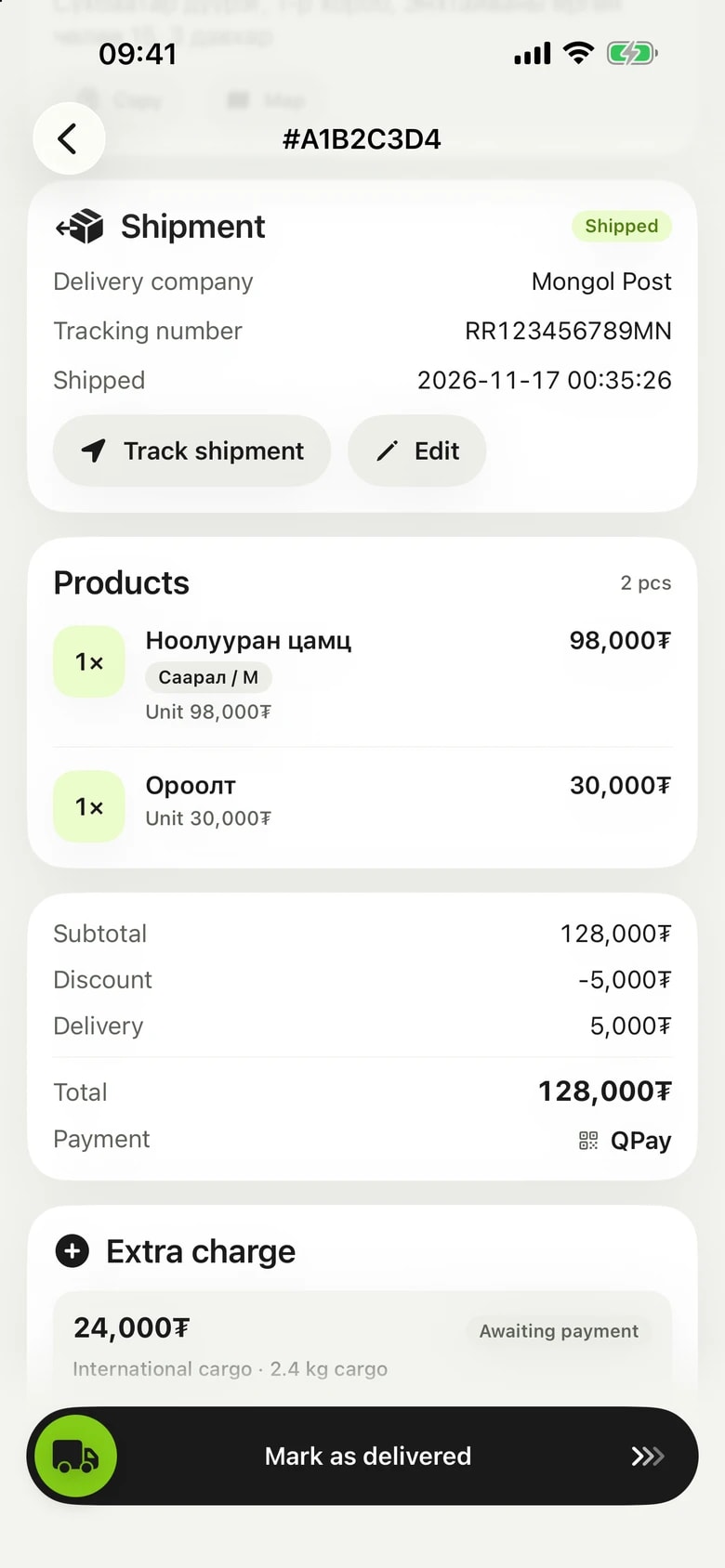
Products, total, how it was paid and the delivery address. Call the buyer in one tap and copy the address.
- 03
Shipped and delivered
Enter the courier and tracking number and the buyer gets one email. Mark the order delivered with one swipe.
- 04
Board and calendar
Orders sit in To ship, Shipped and Delivered columns. Move one to its next step after confirming. The calendar shows each day's sales and the orders shipped and delivered.
- 05
Extra charges
Bill an extra charge on a paid order, such as cargo, and send the payment link. Each extra charge has its own e-barimt.
- 06
Customers
Your customers by segment, and each customer's whole history: orders, payments, points and more. Leave notes that only your team can see.
- 07
Follow-ups
Note what needs doing on a customer or an order, with a due date and an owner. Track them in the Mine, All, Unassigned and Done lists, and complete, snooze or reopen each one after confirming. Only your team can see them.
- 08
One search
Find customers and orders together from the search on the Home screen. The Search all orders row carries on in the order list.
- 09
Add and edit products
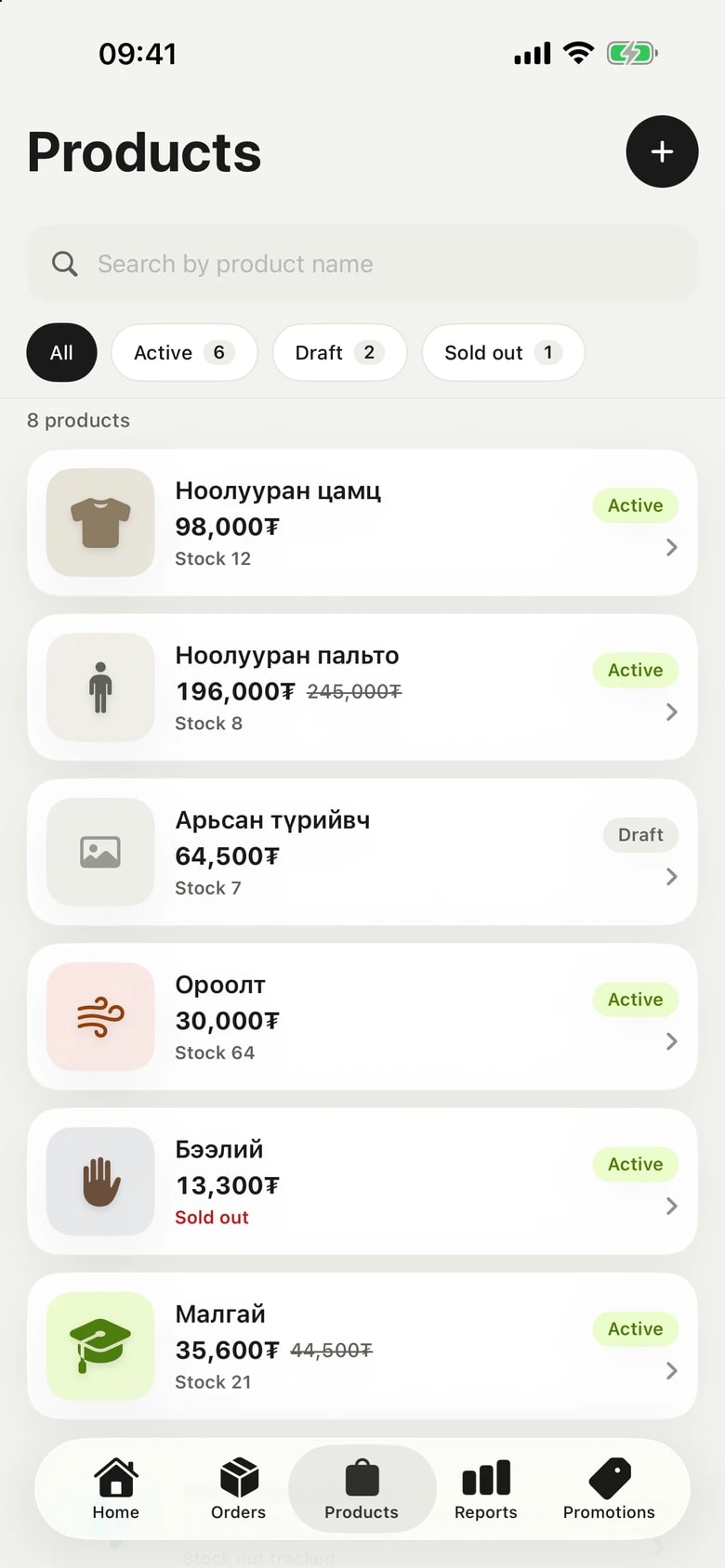
Name, price, stock, photos, category, brand, tags, a sale by percent or amount, and pre-orders. Save as a draft or publish straight to your shop.
- 10
Colours, sizes, variants
Add options, then edit each variant's price, stock, SKU and barcode in the app.
- 11
Inventory
In shops that turned it on: stock and movements at every branch and warehouse. Record stock in, stock out and counts, and mark transfers received or cancelled.
- 12
Shop settings
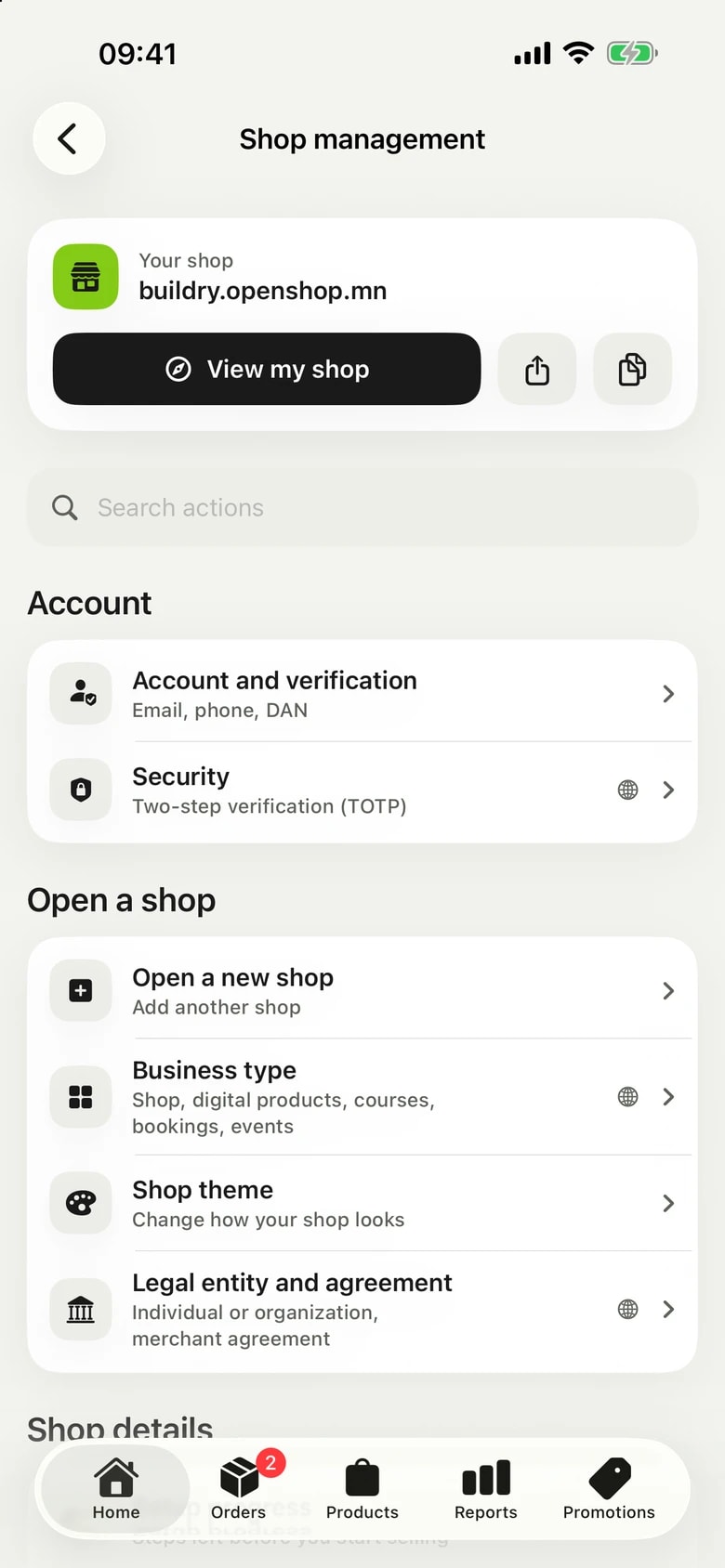
Setup progress, logo, contact details, opening hours, delivery and pickup, branches, shop policies, categories and brands. Other pages open in the web console inside the app.
- 13
Announcement strip and popup
Edit, turn on and turn off your shop's announcement strip and popup from the app. Upload the popup image and pick the strip colours from readable pairs. Other colours and the English text are edited in the web console.
- 14
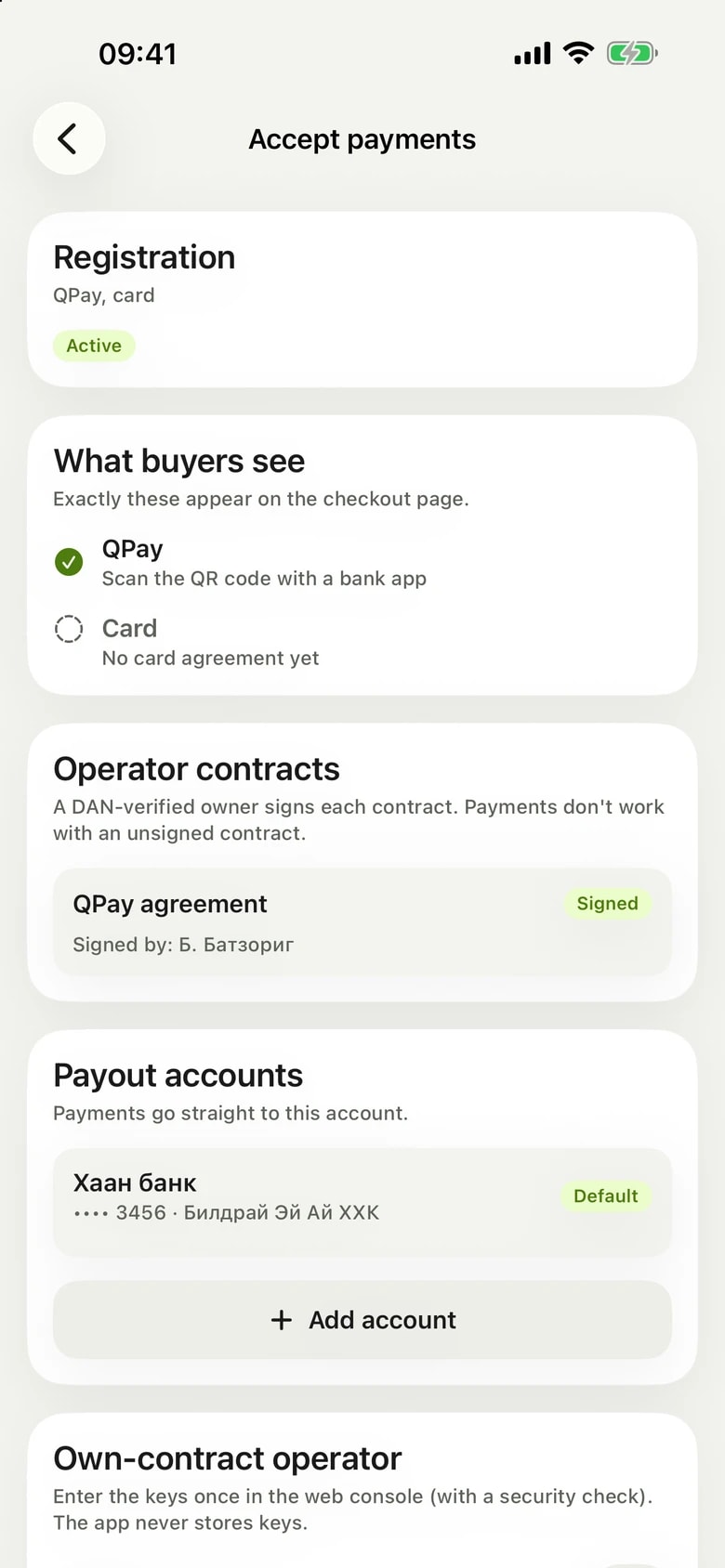
Payments and e-barimt
Payment registration status, the payment methods buyers see, contract, bank account, and the e-barimt request and its status.
- 15
Reports and visits
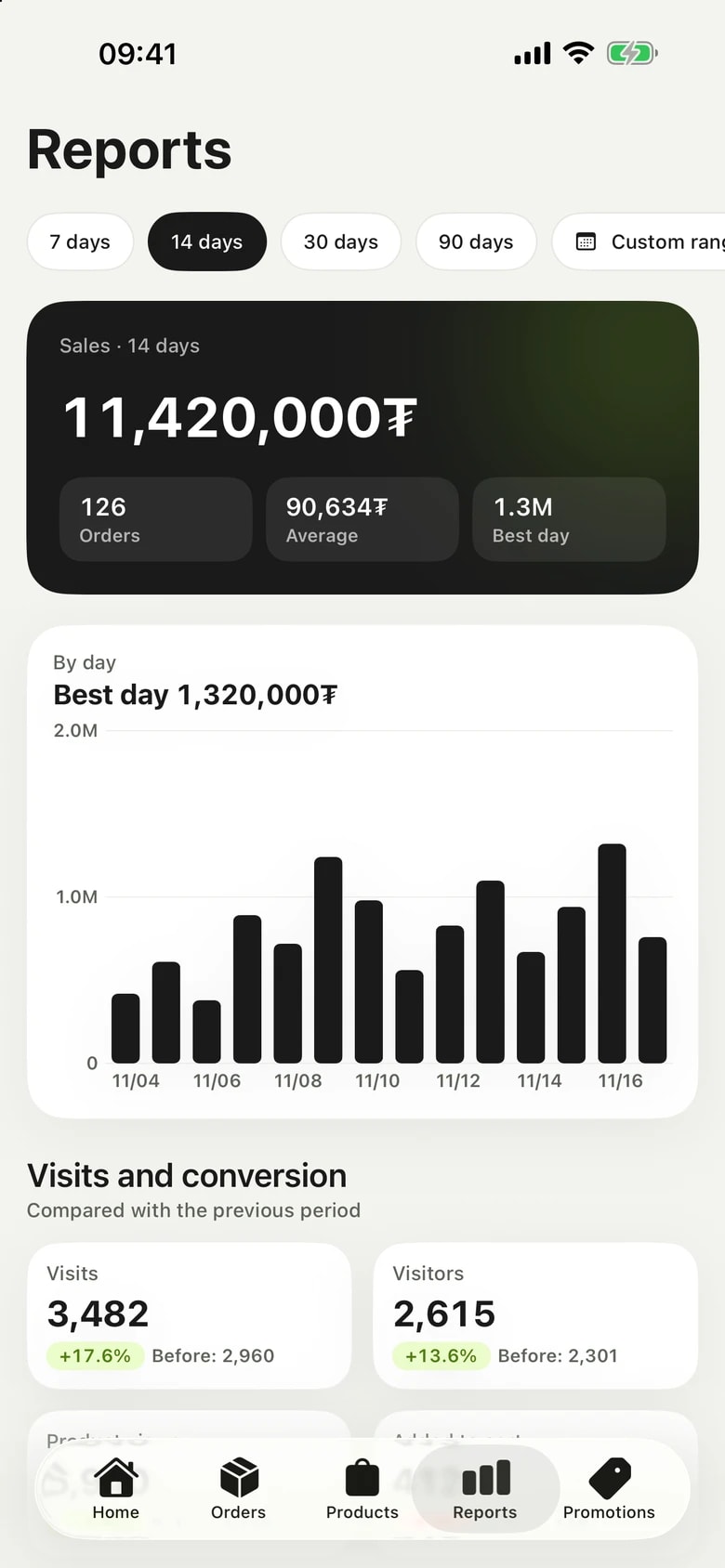
Sales and best-selling products for today, yesterday, the last 7 days, 1 year, all time or any period you pick, with an hourly chart for a single day. Long periods are shown by month. See how many people visited your shop, how many bought and where they came from.
- 16
Product analysis
Sales for every product, ABC classes, rising and falling products, and products with no sales. Tap a product to see sales for each variant and its trend.
- 17
Coupons
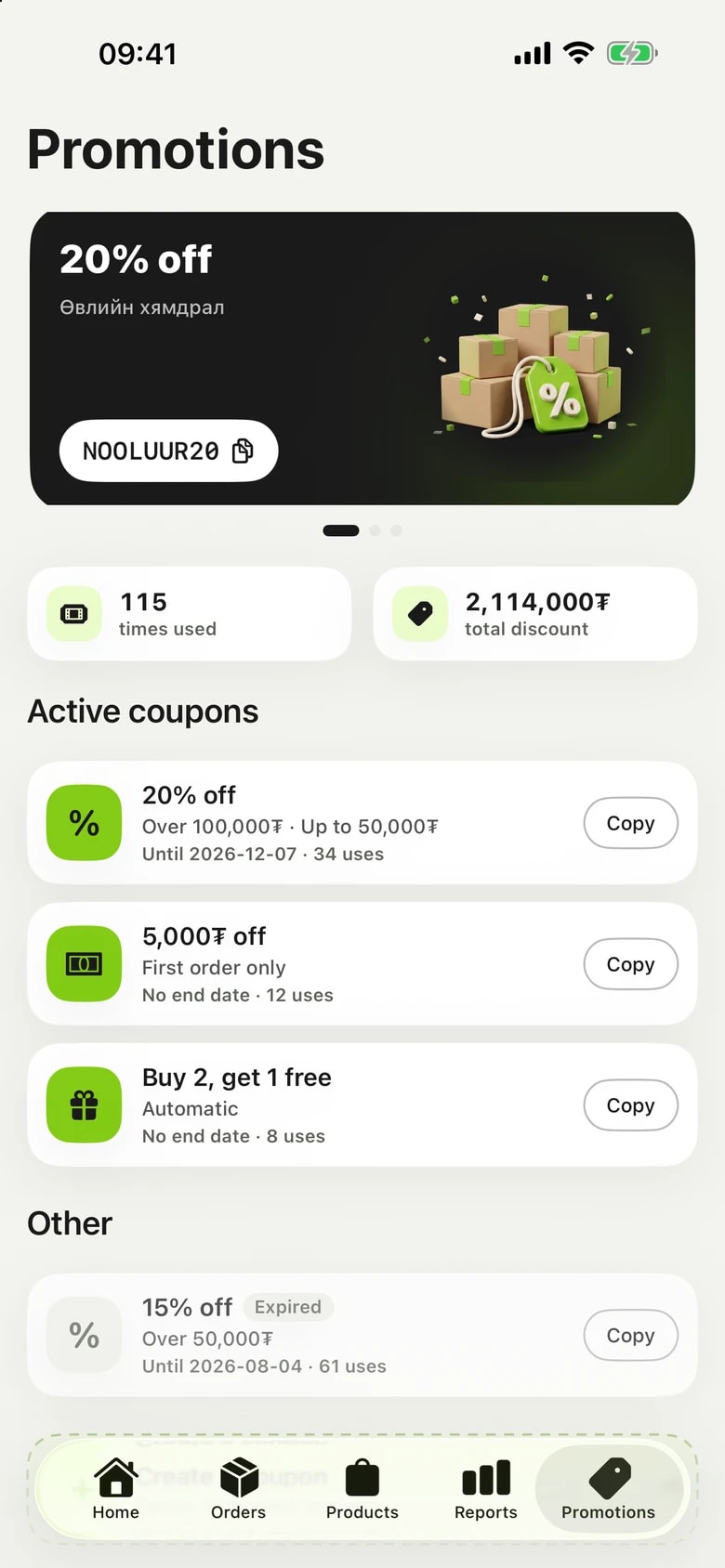
Active coupons and how many times each was used. New coupons are created in the web console.
The real app, real screens.
Small things that help.
Today's sales, orders to deliver and setup progress without opening the app. Orders to deliver and Add product from Control Center.
Staff sign in with their own username and see and edit only what the owner allowed. Payments, the contract and the bank account stay with the owner.
Choose the app style and a light or dark look. Text size follows your iPhone settings.
Turn off usage data and OpenShop news in the Privacy section. Buyer data is never included.
Lock the app and confirm it is you every time it opens.
Change how your shop looks from the app. Your products and blocks stay as they are.
At a glance.
- Price
- Free
- Devices
- iPhone, iPad · iOS 17 or later
- Version
- 1.7.0 · on the App Store since 2026-11-21
- Language
- Mongolian and English (English from version 1.5)
- Sign in
- Your OpenShop account (id.openshop.mn), the same as the web console
- Opening a shop
- In the app or at app.openshop.mn · with DAN verification
What we are preparing.
Features that are not available yet and are being prepared. We will announce each one here and on the blog when it ships.
- AppComing soonAndroid app
An Android app with the same features as version 1.6 of the iPhone app is being prepared for Google Play. Until then, use the web console in your phone's browser.
Common questions.
01Can I open a new shop in the app?
Yes. Terms, phone, DAN verification, name, address, theme and contract are all in the app. For now a shop opened in the app is opened as an individual; you can switch it to a company later in the console. Staff accounts cannot open shops.
02Is there an Android version?
Not yet: the app is made for iPhone and iPad. On an Android phone, use the web console in your browser.
03Can staff sign in to the app?
Yes, from version 1.4.0. Staff sign in on the Staff tab of the sign-in screen with their own username and password. Tabs, buttons and pages follow the permissions the owner gave them. Payment registration, the contract, the bank account and the e-barimt request are owner-only.
04Can I change shop settings in the app?
Yes. Logo, contact details, opening hours, delivery and pickup, branches, shop policies, categories, brands, payments and e-barimt open right in the app. Other pages, such as design and domain, open in the web console inside the app with the same sign-in.
05I am not getting notifications.
On your iPhone, open Settings → Notifications → OpenShop Merchant and check that notifications are turned on.
06What if the app asks me to update?
It means the version you have installed no longer works. Tap Update in the App Store to install the new version. Your shop and orders stay as they are.
07How do I delete my account?
Tap your shop icon on the home screen and send a request from the Delete account row. Your account is deleted after OpenShop reviews and approves the request; until then you can cancel it.